A clear route
from question to result.
Everything runs in your browser. Use your email to access your requests, documents, messages and payment records.
Choose a service →Sign in with your email
- Open Sign in and enter your email address.
- Choose “Send sign-in code”.
- Enter the six-digit code within five minutes.
Use the email linked to your case. Check spam if the code is missing. Never share the code with anyone.
Choose a service and save your request
- Browse services and published fees.
- Read what is included and select a pricing option, when offered.
- Enter your contact details, citizenship, current country and goals.
- Save the request once and check your case reference.
This creates a service request with Armenia Center. It is not a government application, approval or card payment. For existing work, open the previous case instead of submitting again.
Follow your next action
My cases shows your case list and items needing your input. Open a case to see its steps, responsibility, public notes and scheduled appointments.
“Documents needed” means the team needs more information from you. A step and the overall case may have different statuses. Read the team’s notes alongside the label.
Appointment times are shown in Armenia time. The portal reports our service workflow; the relevant authority makes government decisions.
Upload documents and download results
- Open the relevant case and find “Documents & results”.
- Select the requested PDF, JPG or PNG file, up to 10 MB.
- Choose “Upload to this case” and check that the file appears.
- Results published by our team appear separately. Use “Download file” once the security check has passed.
Send clear, complete files. Keep passports and identity documents inside the case, not in general messages. A completed case may no longer allow uploads; contact support if you need to add something.
Keep questions with the right case
Use “Conversation about this case” for case-specific questions. For anything else, open Support messages, add a subject and send your message. Replies stay in the same conversation.
Include a concise description and your case reference when useful. Do not include card details or sign-in codes.
Pay online or coordinate on Telegram
- Save your request and select the service package.
- Upload the required documents in your case. Company registration requires passport files; accounting does not.
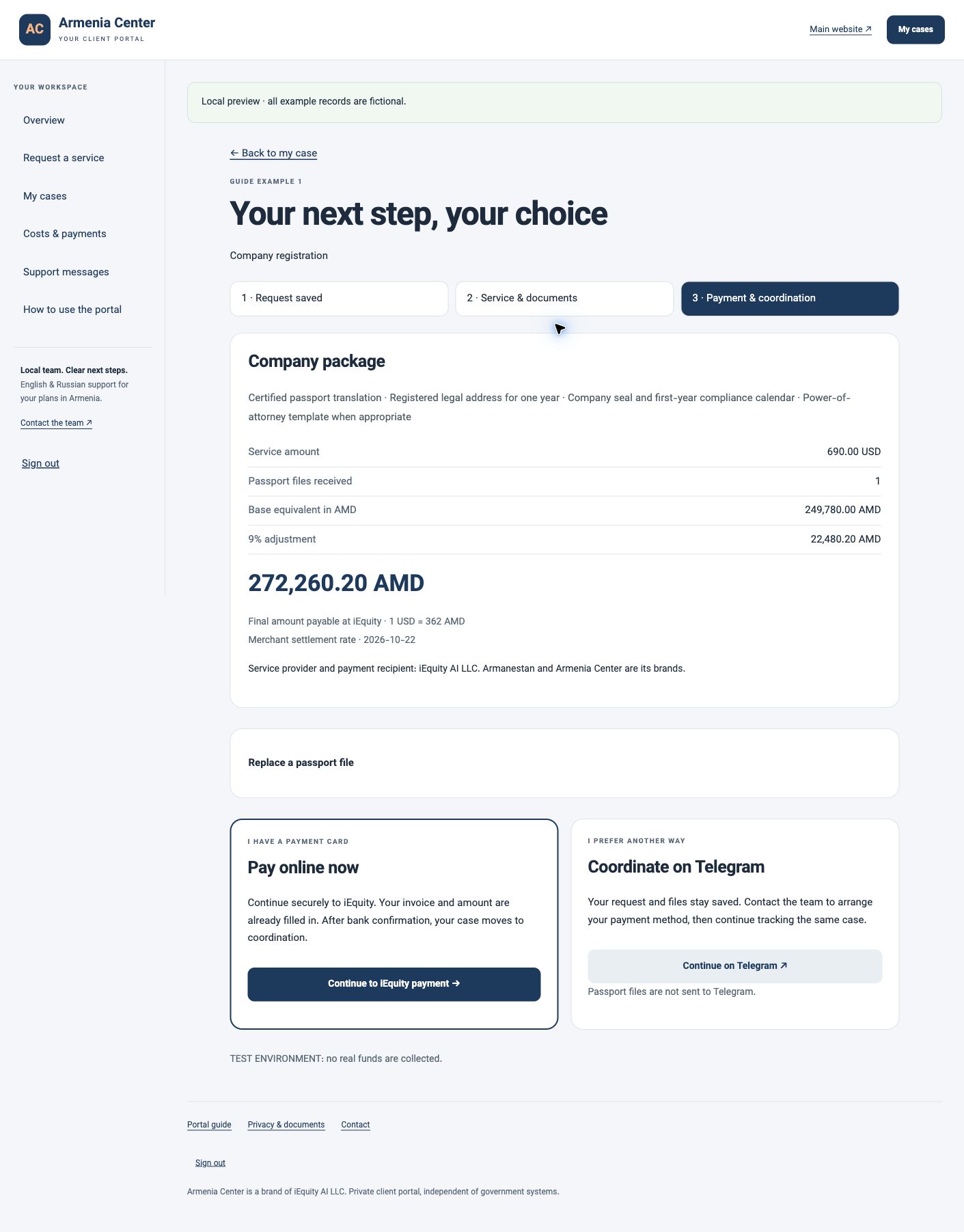
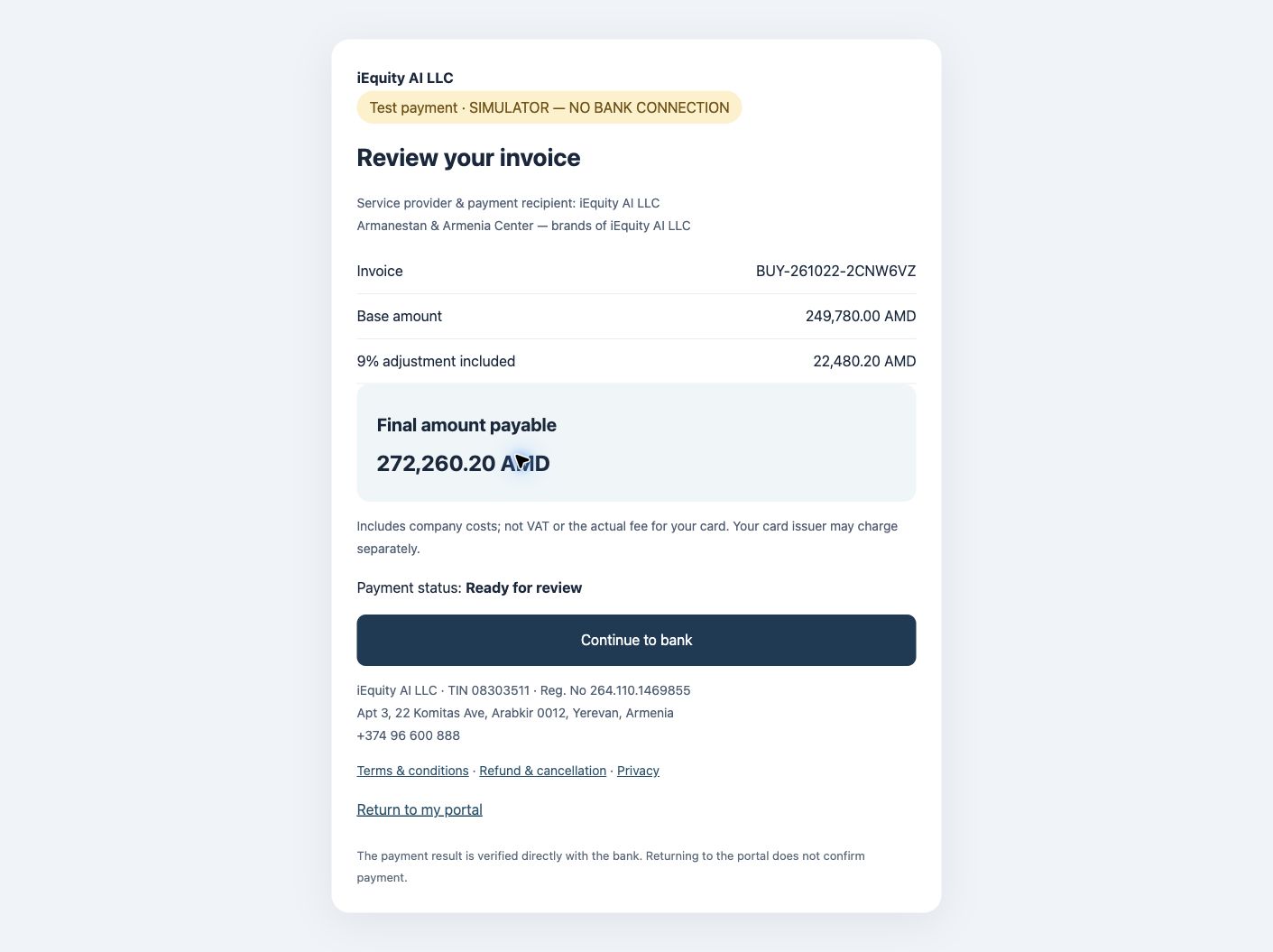
- Review the base price, conversion rate and final AMD total. The 9% adjustment is applied once to base prices.
- Choose online payment to continue to your dedicated iEquity AI LLC checkout and Inecobank. You do not re-enter the amount or invoice reference.
- Alternatively, choose Telegram coordination. Opening Telegram does not confirm payment.
- After the payment is verified, your case moves to service coordination and the payment record appears in your portal.
Tailored services require a confirmed quote first. If a payment is still being verified, check its status or contact the team before paying again. Government and third-party fees remain separate where indicated in the selected package.
View costs & payments →Payment screens, step by step
These screenshots use fictional records in a demonstration environment. The test label belongs to the guide example; your own invoice shows the amount you will pay.
 Enlarge screenshot ↗
 Enlarge screenshot ↗
Quick answers
I cannot see my existing case.
Check that you used the email connected to the case. Ask support to verify the connection; do not create a duplicate request to recover an old case.
My connection dropped while I was submitting.
Check My cases or the document list first. If the request or file is already there, do not submit it again. If uncertain, send the team a short explanation.
Can every government step be completed remotely?
No. Personal attendance, appointments and other requirements depend on your service, nationality and circumstances. The team will confirm what applies to your case.
How do I protect my account?
Keep your email secure, never share codes, and sign out on shared devices. Use the portal’s document upload area for requested files.